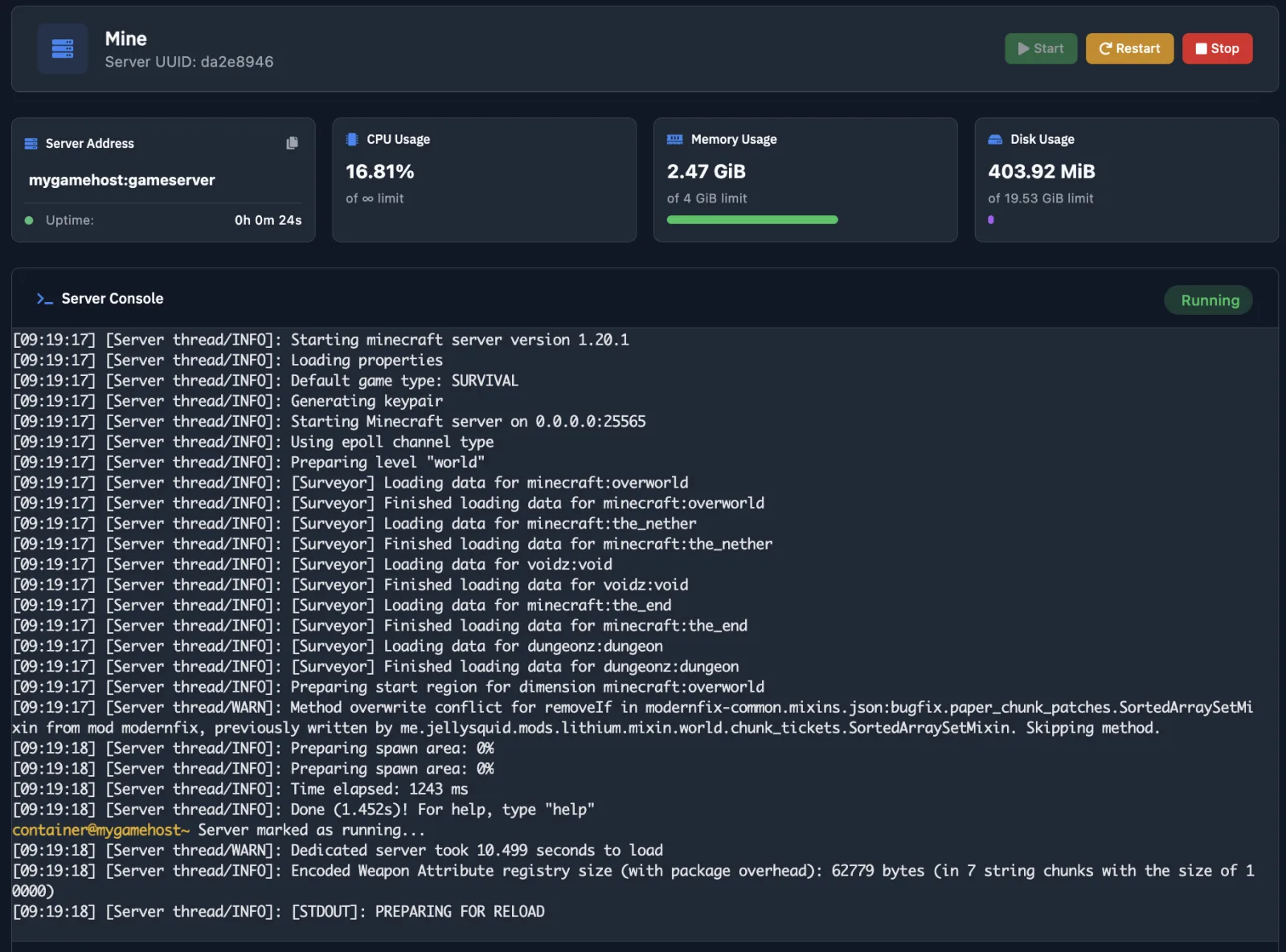
1. Accessing the Modpack Ecosystem
Our control panel features a specialized Minecraft Modpacks module, designed to eliminate the complexity of manual server setup. This tool allows you to deploy professionally curated assemblies from world-class developers with just a few clicks.
To begin, log in to your dashboard at cp.mygamehost.net, select your target server, and open the "Modpacks" tab in the sidebar menu.
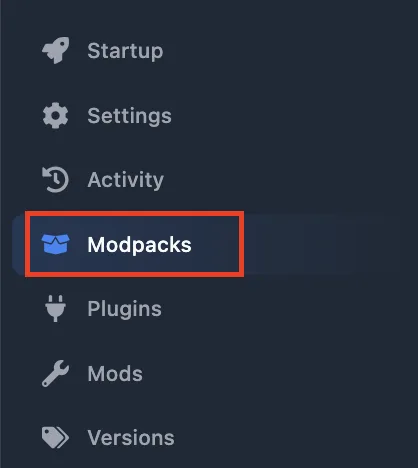
2. Interface & Provider Selection
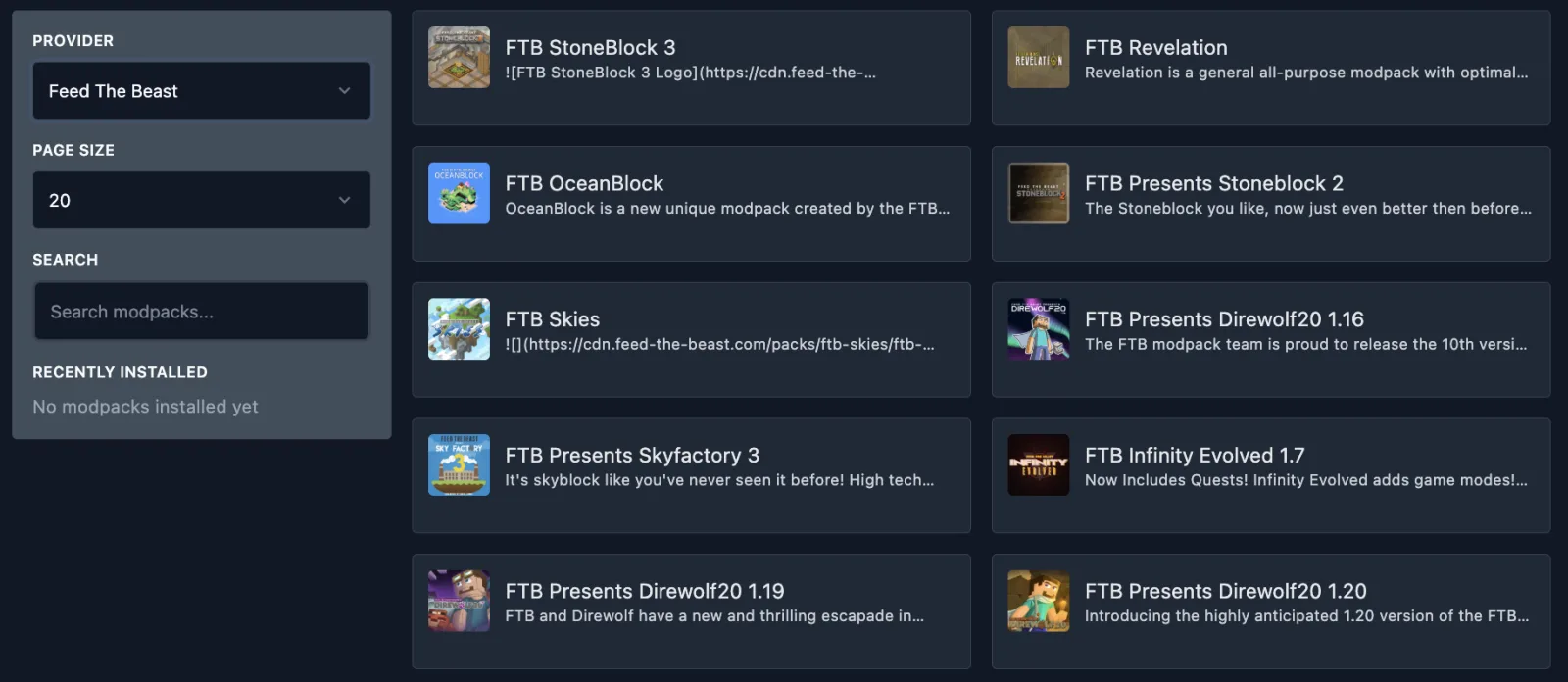
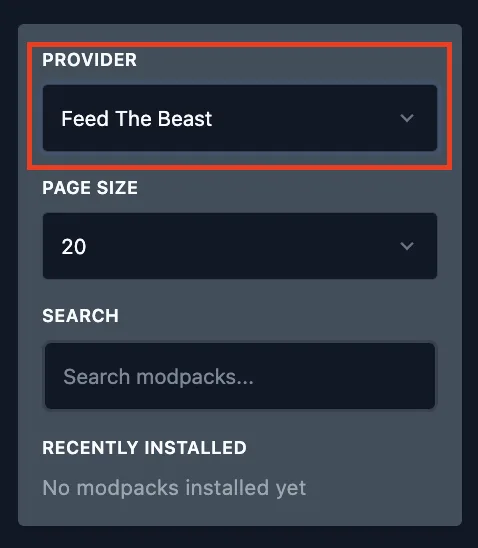
The module provides access to an extensive library of content. Your first step is to choose a Provider — the platform where the modpacks are hosted. Currently, we support:
- Feed The Beast (FTB) — Legendary tech and magic packs.
- CurseForge — The world's largest repository of community creations.
- Modrinth — A modern, high-speed alternative for the latest builds.
3. Search and Configuration
If you have a specific assembly in mind, use the Search bar to find it instantly. You can also adjust the Page Size (we recommend keeping it at 20 for optimal performance).
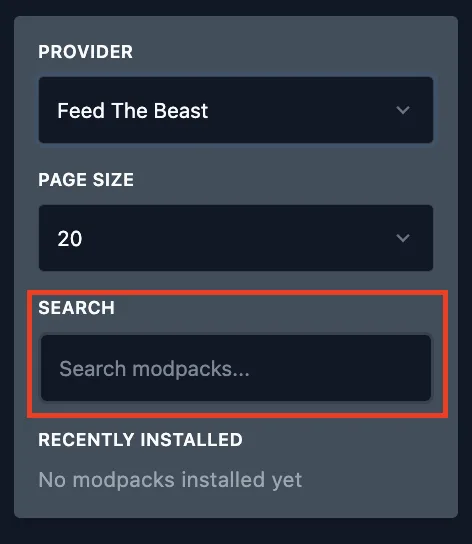
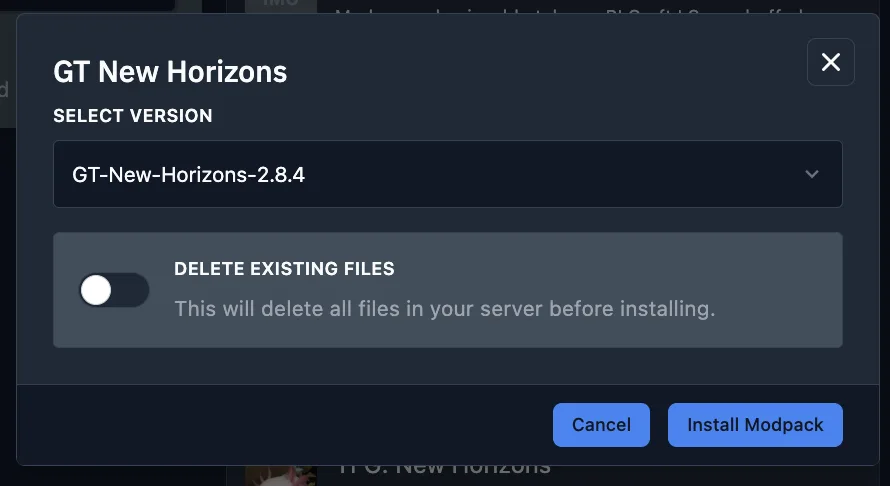
Once you’ve found your modpack, click on it to open the installation menu. Here you can:
- Select the specific Version of the pack.
- Enable "Format Server" (Delete all existing files). We highly recommend this to ensure a clean installation and avoid file conflicts.
4. Finalizing Deployment
After hitting the install button, the system will begin downloading and configuring the server. This process typically takes between 1 and 10 minutes, depending on the provider's server load. Perfect time for a quick coffee break!

Once the status confirms success, your server is ready. Don't forget to install the matching modpack on your own PC to join!