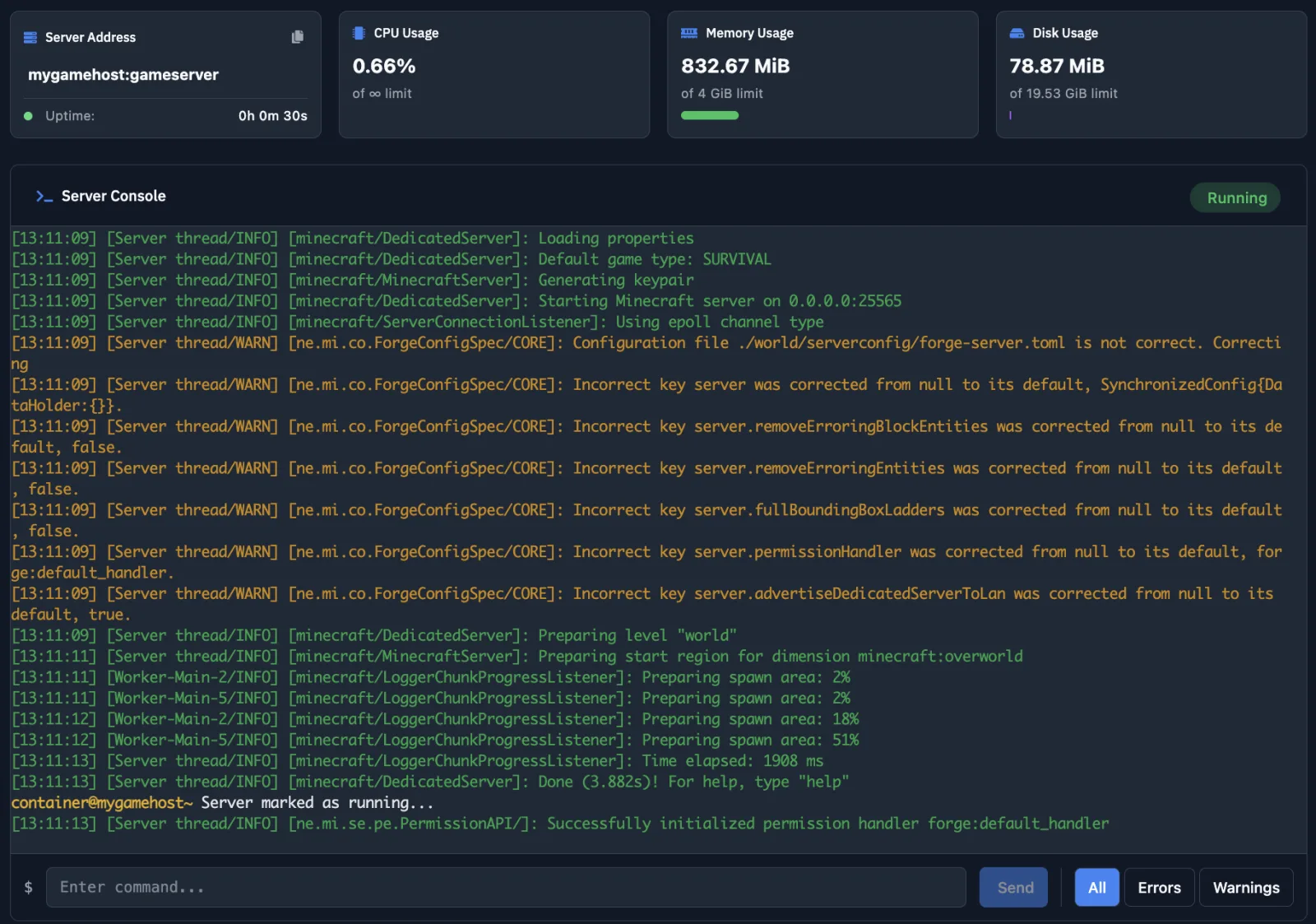
1. Accessing the Version Management Module
Maintaining a modern Minecraft server requires the flexibility to switch between different engines and versions. Whether you're running a private modded session or a high-performance public lobby, our "Versions" module automates the entire installation process.
To start, open your server dashboard and click on the "Versions" tab in the sidebar menu.
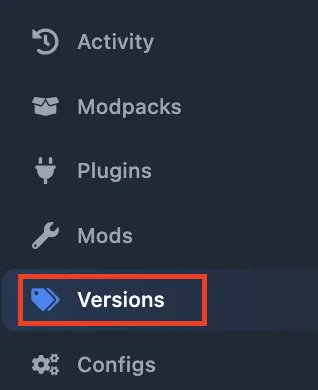
2. Interface & Fork Selection
The interface is designed for rapid navigation. Here you can filter by stable releases or snapshots, use the search bar, and select your preferred Fork (server engine).
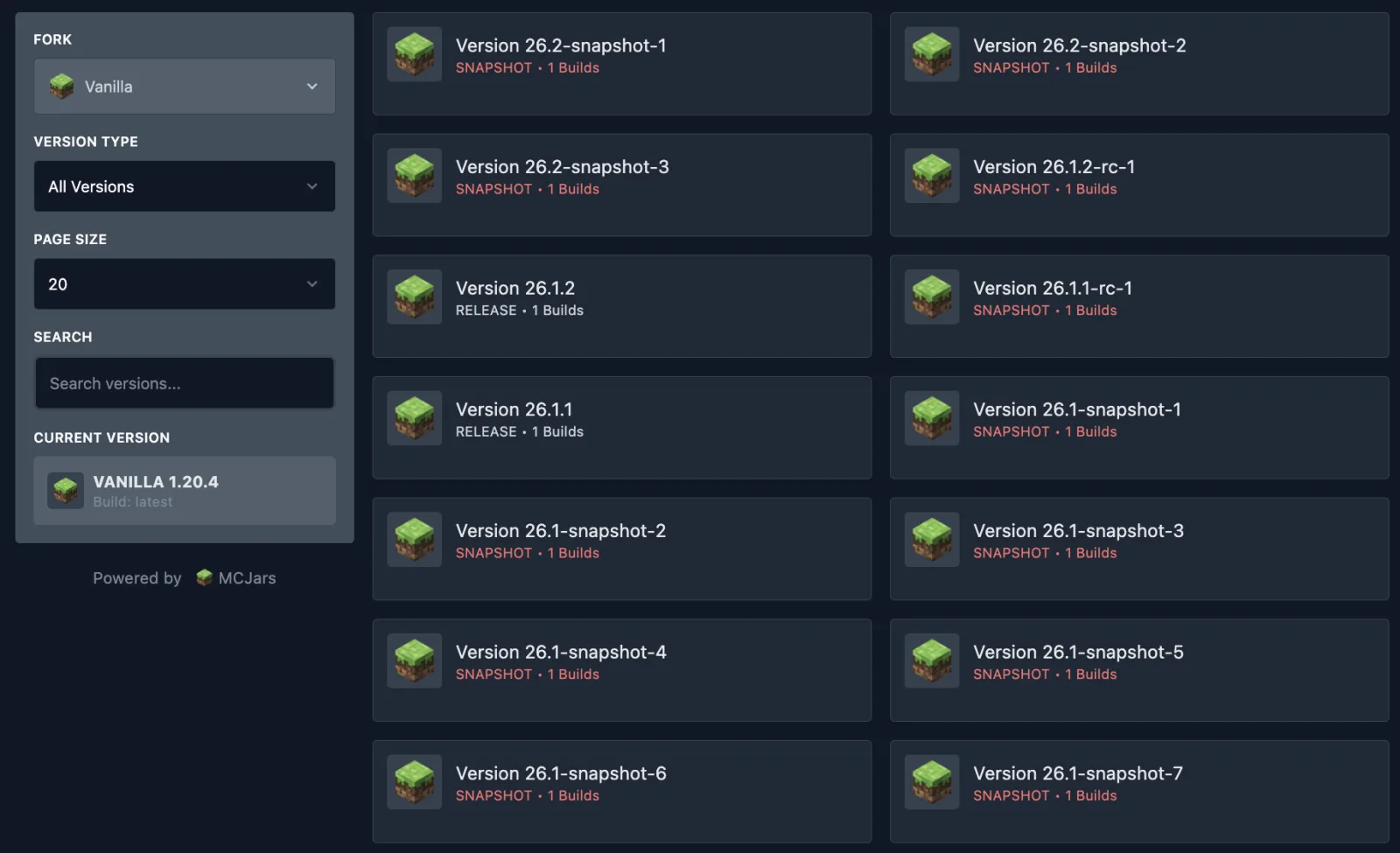
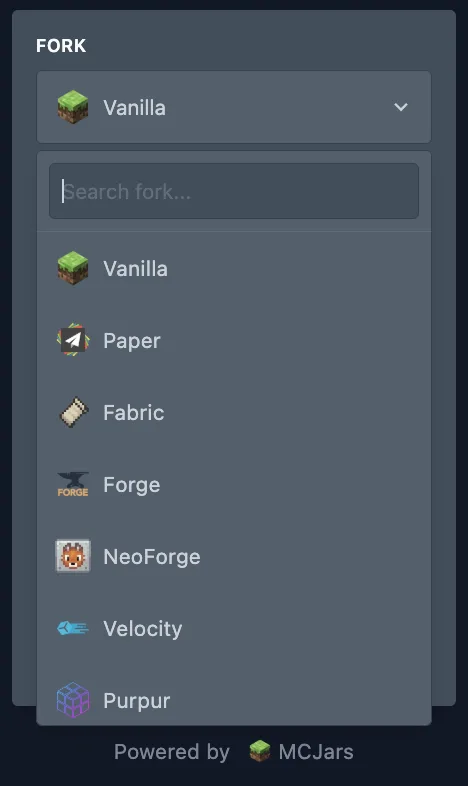
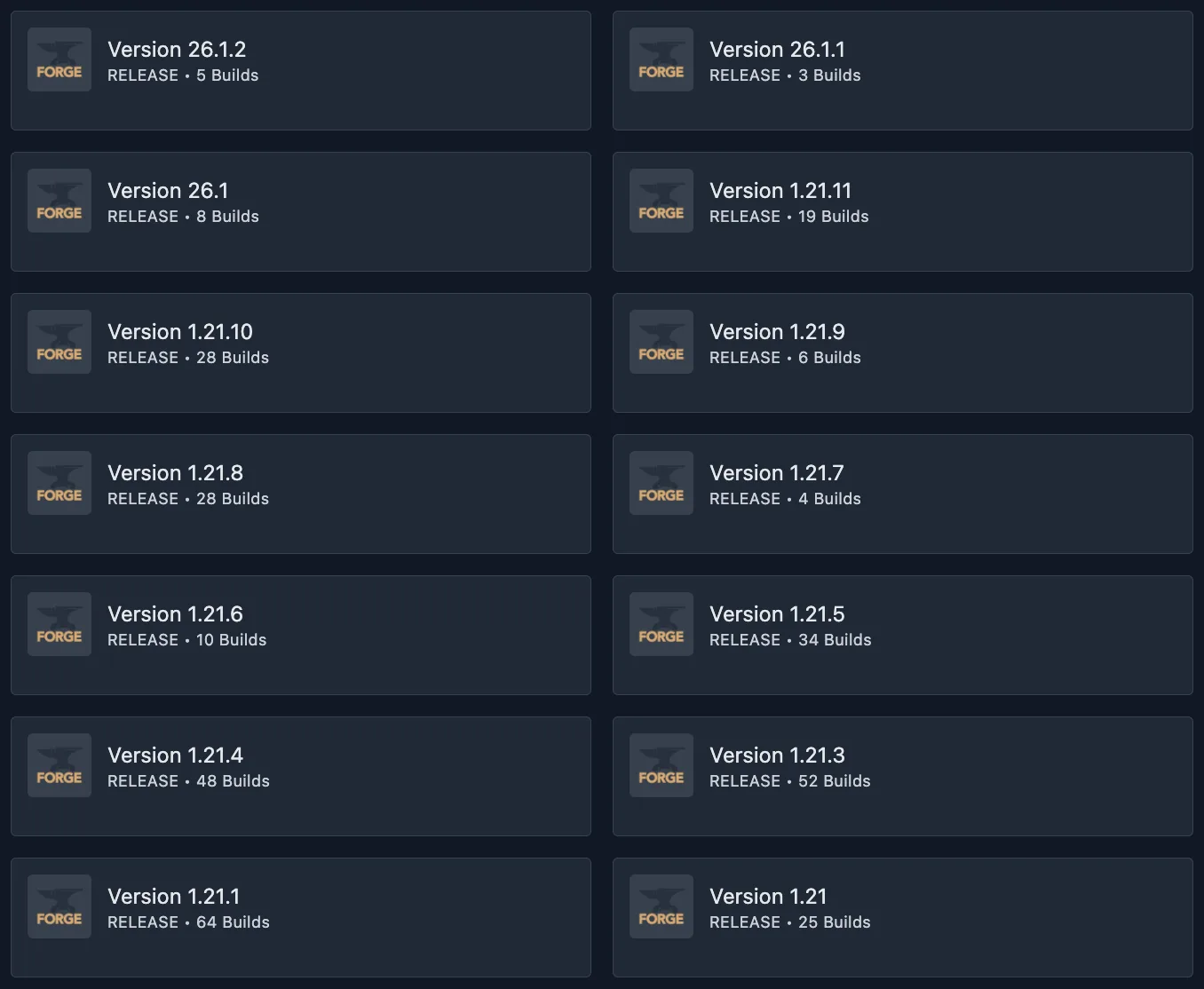
In the "Fork" dropdown, choose the modification type that suits your needs — for example, Forge for mods or Paper/Leaves for optimized plugin support.
3. Configuring Your Installation
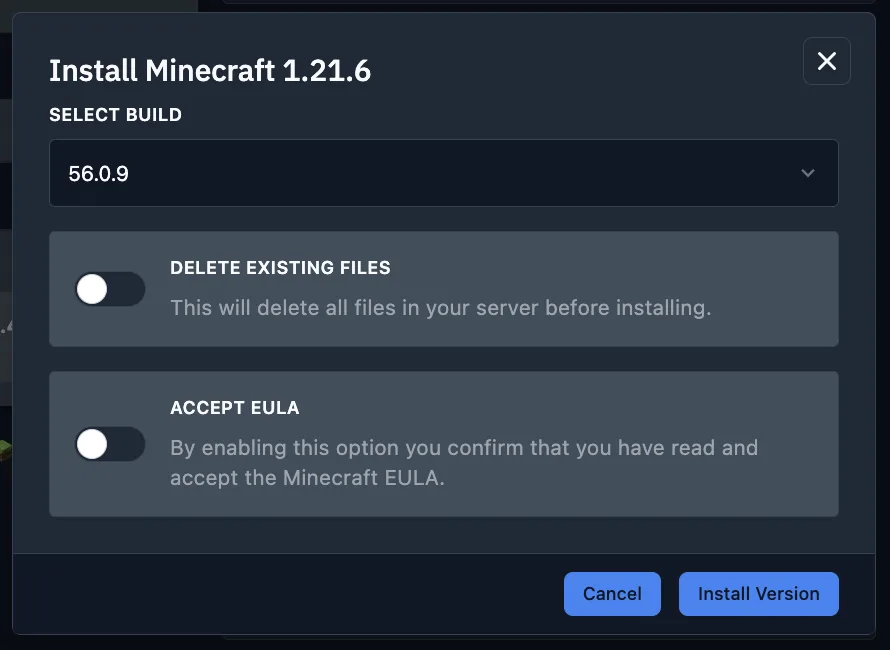
After choosing your fork, select the desired Minecraft Version (e.g., 1.21.6). A configuration window will appear with several critical options:
- Build Selection: By default, the latest stable build is selected. You may choose specific builds if required by certain mods.
- Format Server (Delete Existing Files): Enable this to wipe all current data and perform a "clean" install. Highly recommended when switching between different forks.
- Accept EULA: Automatically agrees to the Minecraft End User License Agreement. Your server cannot launch without this.
4. Finalizing Deployment
Once configured, click "Install". The automated reinstallation process typically takes 1–2 minutes, depending on the speed of the provider's CDN servers.

After completion, your server will be running the new version. You can now launch it and begin your adventure!