1. Launching the Plugin Installer
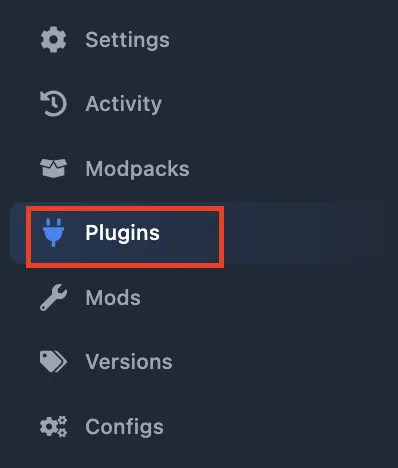
Our control panel features a high-performance Minecraft Plugins module, engineered to eliminate the hassle of manual file management. This tool acts as a direct gateway to the world's most extensive modification repositories. To begin, navigate to your server dashboard and locate the Minecraft Plugins entry in the sidebar menu.
2. Navigation & Interface Overview
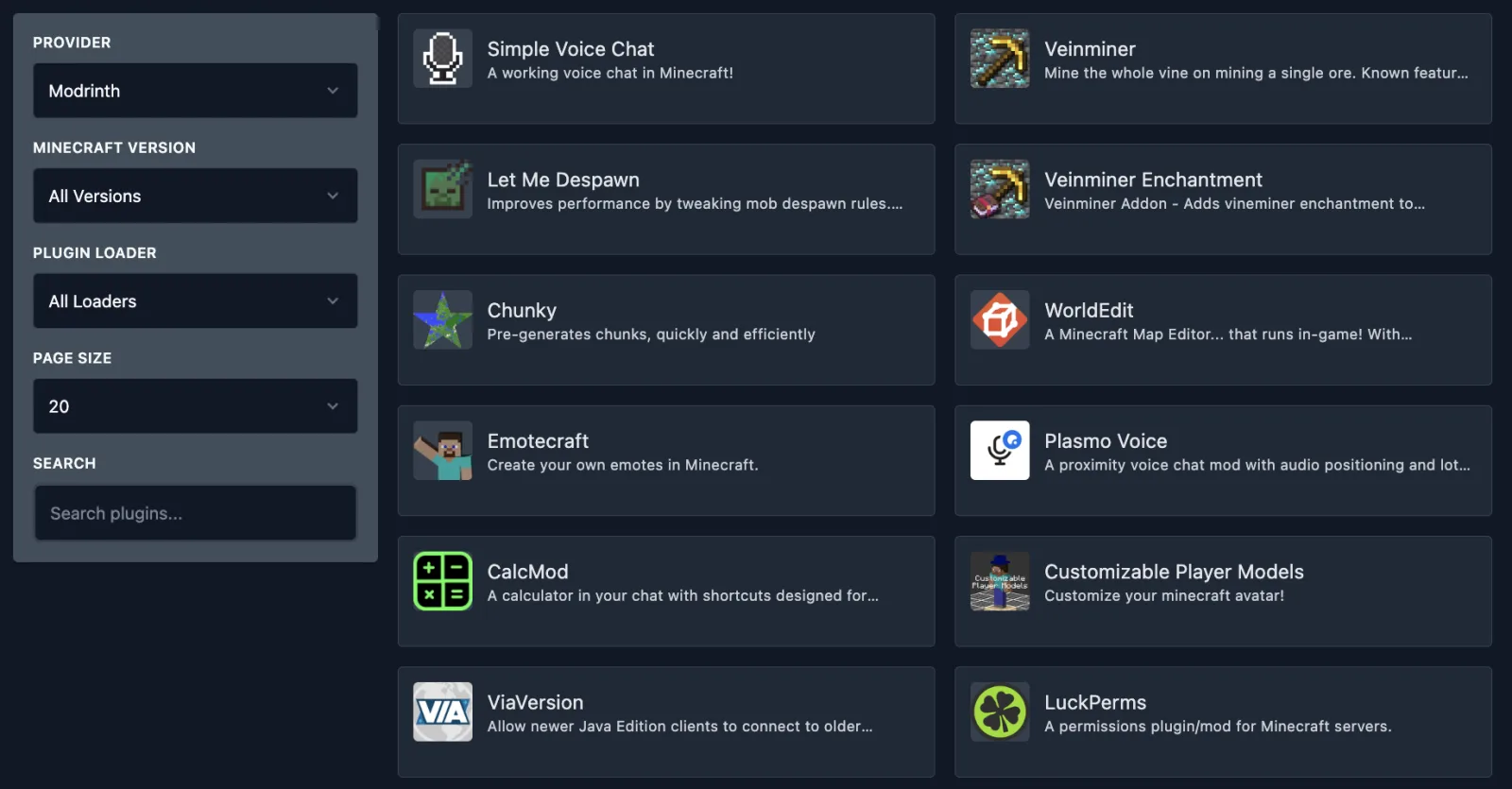
The interface is optimized for clarity and rapid deployment, split into two functional zones to help you find exactly what you need:
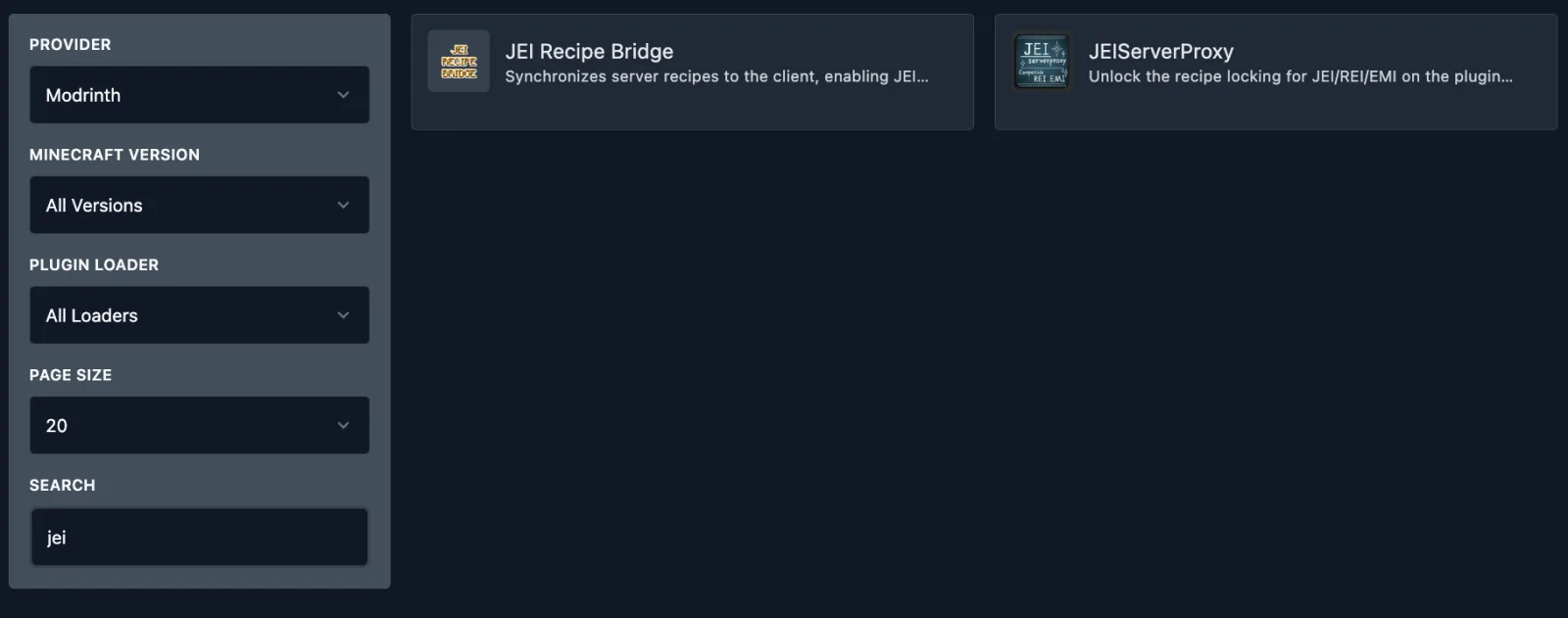
- The Sidebar (Left): A comprehensive filter suite where you can specify the Provider, Minecraft Version, and Loader type (e.g., Paper, Spigot, Purpur).
- The Plugin Gallery (Right): A dynamic list of available modifications, complete with descriptions, icons, and essential metadata.
3. Step-by-Step Installation Guide
Step 1. Choose Your Repository
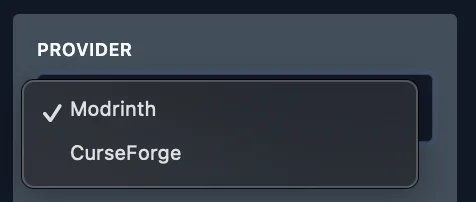
In the Provider dropdown, select your preferred source. The module is currently integrated with two industry leaders:
- Modrinth: Known for its modern interface and blazing-fast download speeds.
- CurseForge: The largest legacy library of classic and community-favorite plugins.
Step 2. Refine Your Search
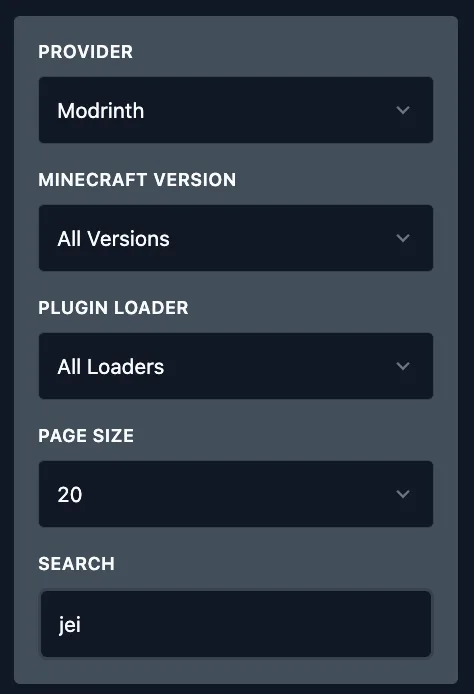
Use the filtering system to match plugins with your server core. Select your specific Minecraft Version and, for Modrinth users, the appropriate Loader. You can also use the search bar for instant access to specific titles.
Step 3. Select and Inspect
Once you’ve found the perfect addition to your server, simply click on its card in the gallery to view installation options.
Step 4. Deploy Automatically
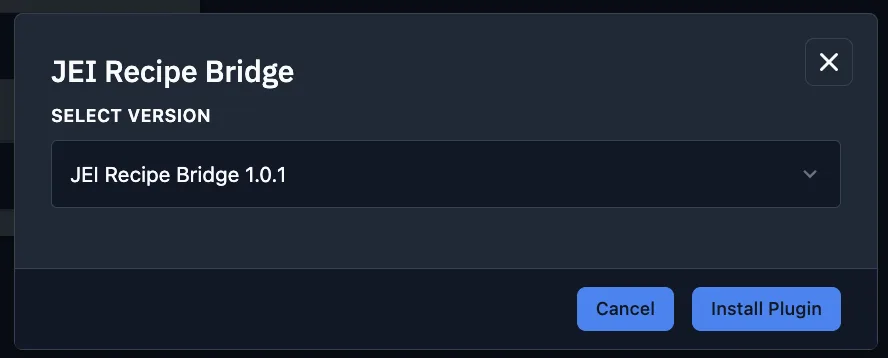
A modal window will appear. Select the version compatible with your setup and click Install Plugin. Our system will automatically download and place the files in the correct directory.

Step 5. Refresh the Core
To finalize the process, navigate to the console and Restart your server. This ensures the new files are properly initialized by the game engine.
